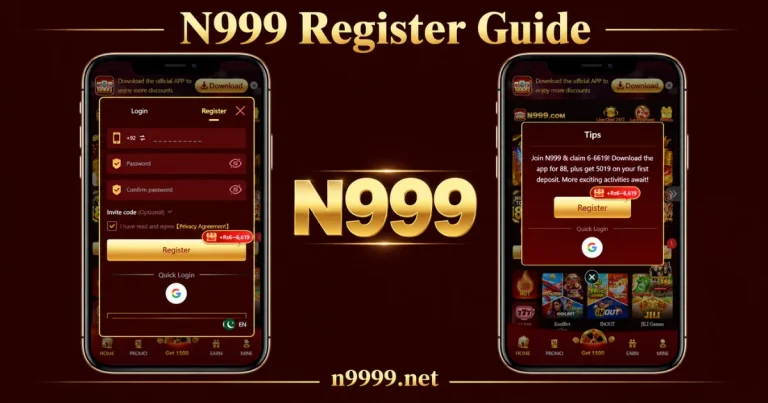
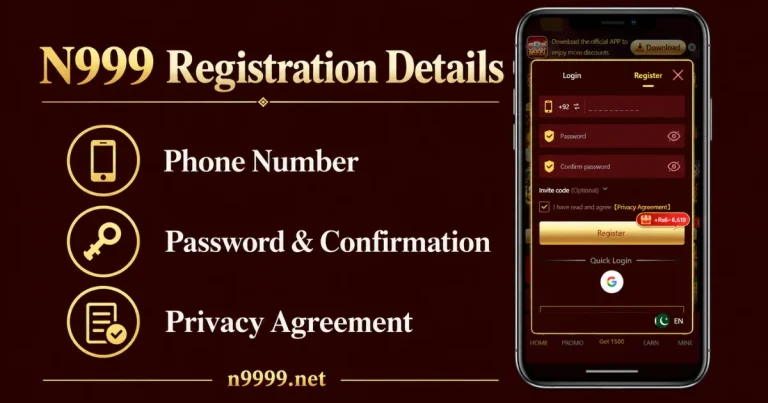
The N999 register form puts the essential account information on one panel. Features include a mobile number field, a password, password confirmation, optional invite code, and a Privacy Agreement checkbox. Below the button is a secondary Quick Login box with a Google icon.
For a first-time user, the main thing is to grasp what each field wants. This article covers the signup layout, how to double check your entries, and what to look for if the form doesn’t progress.
Before Opening the Registration Form
Start with a device you own and a connection that loads the page correctly. If you already have an account, please utilise Login and do not create another profile because you forgot your password.
These details:
- Your cellphone number: Use a number you have access to and can keep access to.
- Unique Password: Select a password not used for email, banking or any other account.
- An invite code, if applicable: Have it ready if you intend to use the optional field.
- Read the length of the agreement: Check the privacy information before accepting it.
Check the destination address before entering personal details. A recognised logo or a matching platform name does not, on its own, tell you who runs a page.
How to use N999 Register Form
The Register button is in the entry popup. If you select it , the signup window will open . Login and Register are independent tabs. Make sure the Register tab is selected and enter the new account details.
See the Country Code
The phone field has +92 right next to the number input field. Check this prefix before entering it. Please follow the number format guidelines in the form. Do not enter the country code twice.
Look at the digits closely. Incorrect data entry can cause problems in a subsequent verification or recovery phase that relies upon it.
Enter and Verify Your Password
Enter your chosen password in the first password field and repeat it in Confirm password. The two entries must match (including capitalisation, numerals and symbols).
The eye-style controls beside these fields are for password visibility. When you check an entry, be sure no one around can see your screen.
Invite Code (Optional) (Tick)
The form labelled Invite code Optional and has a little down arrow next to it. If you want to open this area, provide a code. The label indicates that a code is not a necessary field in this layout.
Don’t just put a random number in there to fill the slot. Whether a code is valid, affects an account relationship, or qualifies for anything is determined by the terms of the platform.
Privacy Policy
There is a checkbox next to “I have read and agree” with a link to a Privacy Agreement. Please read the information provided by following the link, and then tick the box.
Take note of what data the service collects, how it uses this information and what contact alternatives it offers. If the link doesn’t open, correct that before proceeding.
Submit and Follow Next Prompt
Confirm your data and click Register. Read the answer before you do anything else. The form can fail, ask for another step, or jump to another screen.
There is no OTP entry box in this first panel. That does not establish if verification will be asked at a later time. Only input a code in the correct verification page and keep it secret if a code is requested.
What Does Each Registration Field Mean
| Form element | Purpose | What to check |
|---|---|---|
| Phone number | Collects the number entered for signup | Prefix, digit accuracy, and access to the number |
| Password | Sets the password for the account | Any displayed requirements and accidental spaces |
| Confirm password | Repeats the chosen password | Exact agreement with the first entry |
| Invite code | Provides an optional code entry | Accuracy and applicable terms |
| Privacy Agreement | Links to privacy information and records acceptance | Read the linked information before agreeing |
| Register button | Submits the completed form | Review the response after selecting it |
| Google icon | Offers a separate Quick Login route | Read the account-selection and permission prompts |
N999 Game Register and Login: Which Tab Do You Need to Pick?
Register is how to create a new account. Login is for opening an existing one. Both tabs are in the same panel, however they do distinct things .
If you’ve used the service before, please check your saved account details first. Creating a new profile may make it hard to know which account your information or activity is on.
If you want to know more about the menus and the sections available, check our N999 Game guide.
N999 App Register: Working with an Installed Client
If registering from an installed app, check the fields offered by that client. Menus and entry screens may vary from build to build, so follow the real instructions and don’t assume that all versions utilise the same sequence.
An APK register process concerns account creation inside the installed Android package. Downloading or installing a file does not itself complete the signup form. Keep installation questions separate from number, password, or agreement errors.
If you are sent to a browser by Client, check where you are going first. If you don’t recognise a site that launched from another screen, don’t enter information on it.
What the Google Quick Login Option Signifies
The signup panel and the entry popup show a Google icon under Quick Login. This creates an additional entry point next to the phone-and-password form.
Before you continue further, check the selected Google account and read any permissions requested. Someone else might be using a shared device with a signed-in account.
The icon itself does not tell you if this route generates a new profile, connects to an existing one, or requires more info. Follow the information displayed throughout that process, not presuming that it is same as manual registration.
When Registration Fails
You don’t have to constantly start over with a delayed N999 register attempt. First, search for a note near a field or below the submit button.
| Problem | Practical check |
|---|---|
| Phone number rejected | Check the prefix and the kind of format that the field asks for. |
| Password entries do not match | Retype both entries checking for unneeded spaces or capitalisation. |
| Agreement error appears | Please make sure you have checked the box to review the agreement. |
| Number already registered | Use the account route as is or an accessible recovery alternative. |
| Button does not respond | Check your connection and wait until the page is fully loaded. |
| Invite code error appears | Don’t try to guess replacements, check the code and the terms. |
| Google route stalls | Confirm the selected account and any blocked sign in window. |
If the result of submission is unclear, check whether you can access the account before trying again. Repeated taps can make it difficult to follow which response belongs to which attempt.
When requesting help, describe the error and the step where it appeared. Hide passwords, verification codes, and unnecessary personal details in any attachment.
Frequently Asked Questions
N999 registration, need an invite code?
The presented form indicates the invite code is optional. If you opt to use a code, please check any instructions that come up when you open the field.
There is an OTP field on the first signup panel?
The first here presented panel has no OTP field. You can make a verification request at a later time, so please follow the following instruction after submission.
Can I register using the Google icon?
Google is displayed as a Quick Login option. You will not see the entire process of account creation or connection just from the entry screen.
Can I alter the mobile number once I have signed up?
The registration panel doesn’t clarify number changes that occur afterward. Before you rely on that choice, check the account settings or ask via an available support channel.
Why are there promotional figures next to Register?
In the UI, there are promotional labels near the entry button. These markings do not indicate eligibility, limitations, or a guarantyd account benefit. Interpret the appropriate terms in isolation.
Final check before sending
Check your number, make sure both passwords are the same and read the Privacy Agreement. Use the invite area just when it applies and then watch for the response to your submission.
This guide is for anyone aged 18 and up. Before signing up, be sure to check the rules in your area and the qualifying requirements of the site.