The N999 login panel combines the primary sign-in controls: a phone number field, a password box and a gold Log in button. Below them are links to Service center and Forgot password for separate routes for support and account recovery.
Under Quick Login, there’s also a Remember password tick and a Google option. Knowing what these settings are for enables you to choose the appropriate way to enter data and discover easy mistakes before you send off your information.
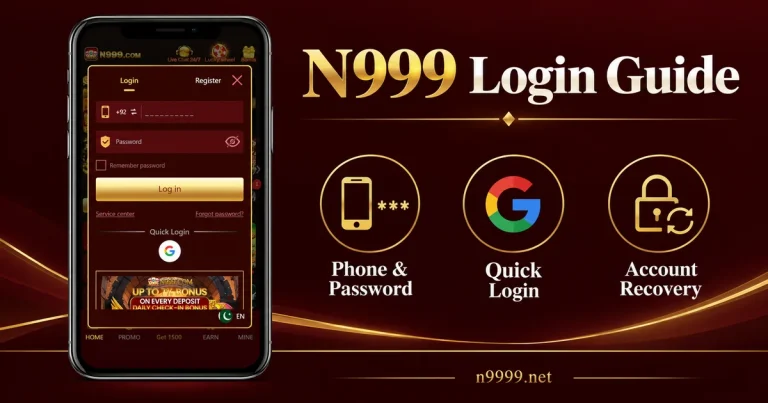
A Quick Look at the Login Panel
Top of the same window is Login and Register. The currently selected Login tab is yellow text with a short underline. Visitors who need to create a new account can find the registration available next to it.
The phone field is +92 and place where you enter the number. The password field has an eye-icon. The main submit button says “Log in”.
| Control | What it is for |
|---|---|
| Login tab | Sign In with an Existing Account |
| Register tab | Sign up for an account |
| +92 phone field | Uses mobile number used to log in |
| Password field | Steals account password |
| Eye-style icon | Provides password visibility toggle |
| Remember password | Allows you to remember passwords |
| Log in button | Submits the credentials entered |
| Service center | Provides an avenue for assistance |
| Forgot password? | Open the available recovery path |
| Google icon | Initiates the distinct Quick Login route. |
How to Login N999
Choose Login Before Fill Details
Open your account panel and see which tab is active. If Register is chosen, change to Login. Existing users do not need to fill out a new registration form to return to an account.
Before you type, check the URL of this page or the app you’re using. A common name and familiar design are not proof that all the pages are from the same operator.
Verify your mobile number
Your mobile number associated with your account. Since the +92 is already shown next to the field, use the format the form asks for and don’t automatically retype the prefix.
Look out for missing numbers, an extra leading character or a number copied from the wrong contact. If you use multiple SIM cards, please check the number you registered with.
Enter Password Correctly
Use your account password (note the capital letters, digits and symbols). A keyboard can transform the first letter to upper case. Copied text can have an undesired gap.
The visibility symbol allows you to open the entry for private viewing. When you’re done checking the password, hide it again, especially if someone else can see the device.
Review Remember Password Option
Choose whether to select Remember password before submitting. Leave it unchecked on a borrowed phone, a shared laptop, or any device another person uses regularly.
The checkbox label does not specifically describe how the client keeps or remembers credentials. This isn’t the same level of protection as a specialised password manager and it won’t guarantee that your account will stay signed in.
Send once and receive the answer
Check both boxes and choose Log in. Wait for the page to reply, then read any message it displays. Multiple taps make it difficult to know if the first request is still processing.
If the form rejects the details, then provide an error message to help you know what to examine next. Don’t try several passwords, use the existing recovery path.
N999 Game Login using Google Fast Login
Under the Quick Login heading will be the Google icon. It’s an alternative to the phone and password fields, but the entry screen doesn’t clarify the whole account linking process.
If you have already used Google to sign in to the service, please make sure you use the same Google account. A browser could be logged in to another profile, for example on a family machine.
Read the permissions and destination information that is displayed when you sign in. Never take for granted that the Google you pick will have the same profile as a manually registered phone account until the service makes you sure of that association.
N999 App Login and APK Login: Keep Your Account Details the Same
If you are using an installed client, follow the login fields as shown in that version. The app login page may look different from a browser panel, while the labels are comparable.
APK login requires you to install the package separately from your account access. An installation difficulty relates to the file or device; an incorrect-password error relates to the credentials supplied into the form.
If switching between access methods, make sure you are within the same service before inputting details. Don’t assume that all matching APKs, browser pages or logos employ the same account system.
Lost your password? Begin With the Recovery Link
The Forgot password? link is underneath the main button on the right. Use this entry point if you forget the password or if you suspect the saved value is out of date.
Read attentively the recovery screen. The login panel itself does not determine if the following stage will be a phone number, a verification code or any other check against your account.
- Follow the instructions below. Provide information only as required through the recovery procedure.
- Never share any code you receive. Do not give it to someone else. Just enter it in the form.
- If a reset is prompted, choose a new password: Please do not reuse the old value or a password from another service.
- Afterward, review the saved credentials. If needed, update an old item in your password manager.
If you no longer have control over the registered number, explain the issue through the service channel offered. The login screen makes no promises you can change a number, or get back in without it.firm whether changing a number or recovering access without it is possible.
Common N999 Login Problems and Practical Checks
| Problem | What to check first |
|---|---|
| Number rejected | Verify the country prefix and the number format needed. |
| Password error | Check spelling, spaces you don’t want, old autofill data. |
| Form keeps loading | Please check your internet connection and try reloading this page. |
| Wrong Google profile opens | Validate the account selected in the Google signin flow. |
| Recovery page does not open | Check if a window is blocked or a page loading issue. |
| Different account details appear | Verify user identity, login method before proceeding. |
| Access still fails | Note down the precise error and head to the Service center. |
Don’t jump to “Clear all browser data” as your first response to a login problem. This can delete saved details and log you out of unrelated services. As a start, check the particular field or message that reports the problem.
What to Say When Asking for Help
On the left, under the Log in button, you will find a link to the Service center. If basic troubleshooting isn’t successful, tell me where the process is failing instead of just saying “login not working”.
Please provide an error message, whether you were using a browser or installed client, and the approximate time of the failed attempt. If you are attaching an image, please obscure your password, verification codes, full phone number and any other unrelated personal information.
Having a support link does not ensure a response time or the recovery of your account. Then follow the instructions given on that channel. Keep a record of the guidance you receive.
Frequently Asked Questions
Does the N999 login come with an invite code?
The login form shown here does not have an invite-code box. It asks for a phone number and password, with Google as one of the quick login options.
Is Remember password the same as staying logged in?
The label refers to remembering a password. It does not explain session duration or confirm that selecting it keeps the account signed in indefinitely.
Can I get my access back after I lost my SIM?
The login panel does not inform you about this issue. Please do not assume that the registered number can be replaced by another number, instead use the Service center route to enquire about the available recovery checks.
If login fails, do I need to register again?
First, verify your current details and recovery option. Creating a new registration will not restore access to the previous account and may result in several profiles.
Does changing my password sign out every other device?
The login screen doesn’t verify that behaviour. Check your available security or session settings and seek for help if you need to check other signed-in devices.
One Last Check Before You Sign In
Verify your account number, password and the login type your profile is using. If access fails, read the response and utilise the proper recovery or assistance link for the problem.
For the wider platform overview, visit our N999 Game guide. If you have never created an account, read the N999 register guide before using the signup tab.
This handbook is meant for people age 18 and above. Before accessing an account, check the rules in your location and the eligibility requirements of the service.